If you have ever received a photo from an iPhone and tried to open it on your Windows computer only to find that the file refuses to play or import, you have encountered the HEIC file format. Apple switched from JPEG to HEIC as the default photo format starting with iOS 11, and while HEIC delivers better image quality at smaller file sizes, it creates genuine compatibility headaches for anyone using Windows, Android, or sharing with people who do not own Apple devices. The good news is that playing or converting HEIC files is entirely possible with free tools, and you do not need expensive software to handle them. This guide walks you through the best free options available, with step-by-step instructions for the most reliable method.
Tool One: VLC Media Player — Best All-Rounder
VLC has earned its reputation as the Swiss Army knife of media playback, and its HEIC support reflects that versatility. The open-source player handles HEIC files natively without requiring additional codec installations, and it plays both individual images and image sequences smoothly. VLC works on Windows, macOS, and Linux, making it the most portable solution on this list.
The strength of VLC lies in its zero-cost, no-nonsense approach. You download one installer, complete the setup in under a minute, and you are ready to open any HEIC file immediately. There is no registration, no subscription, and no nagging upgrade prompts. VLC also supports converting HEIC to other formats through its built-in media conversion feature, though the interface is less intuitive for batch processing.
On Windows, VLC handles HEIC through its automatic codec detection. You simply drag the file onto the VLC window or use File Open to select it. The player displays the image in its video rendering window, which means you can zoom, take snapshots, and view EXIF metadata through the Tools menu. The experience is smooth and stable, with even large HEIC files loading within seconds.
Official site: videolan.org
Tool Two: CopyTrans HEIC for Windows — Best for Windows Explorer Integration
CopyTrans HEIC takes a different approach by integrating directly with Windows Explorer rather than requiring a standalone player. Once installed, the plugin adds HEIC support to the Windows photo viewer, Paint, and other built-in Windows apps. You can double-click any HEIC file and it opens in your default photo viewer just like a JPEG would.
The plugin is free for viewing, with a paid tier adding conversion capabilities. For users who simply want to view HEIC photos without any conversion, CopyTrans delivers the most seamless experience because it requires zero behavior change from how you normally interact with images on Windows. The integration happens at the system level, meaning every application on your computer gains HEIC support automatically.
Installation requires the .NET framework on older Windows versions, and the plugin only works on Windows 10 and Windows 11. Some users report that the initial load time when opening the first HEIC file is slower than subsequent files, suggesting some caching optimization occurs after first use. For basic viewing needs, these minor inconveniences are outweighed by the convenience of never needing to remember to open a specific application.
Official site: copytrans.net/heic
Tool Three: iMazing HEIC Converter — Best for Batch Conversion
iMazing HEIC Converter by DigiDNA focuses specifically on the conversion problem rather than playback. The application runs entirely on your local machine with no cloud processing, which matters if you have privacy concerns about uploading personal photos online. You drag individual files or entire folders onto the iMazing window, select your output format and quality settings, and click Convert. The application handles the rest automatically.
What sets iMazing apart is its handling of EXIF metadata. Unlike some converters that strip camera information and geolocation data during conversion, iMazing preserves the full metadata when transforming HEIC to JPEG or PNG. This matters for photographers who rely on metadata for organization or legal documentation purposes. The batch processing capability allows you to convert hundreds of photos in a single operation without any manual intervention between files.
The interface is clean and straightforward, making it accessible even for users who are not technically inclined. Output quality settings let you choose between optimized file size and maximum quality, and you can preview results before committing to a full batch conversion. iMazing is available for both Windows and macOS, and the free version handles all essential conversion tasks without time limits or watermarks.
Official site: imazing.com/heic
Tool Four: Online-Convert.com — Best for Occasional Use Without Installing Software
Online-Convert.com provides a browser-based HEIC to JPEG conversion service that requires no software installation at all. You upload your HEIC files, select output settings, and download the converted files within minutes. The service handles individual files of up to 100MB, which covers the vast majority of photo files from smartphones and cameras.
The obvious tradeoff with any online conversion tool is that your files leave your computer and travel to a remote server. This means Online-Convert is not appropriate for sensitive photos that you would not want third parties to access. For travel photos, screenshots, and general-purpose images that do not contain sensitive information, the convenience of no-install conversion is significant.
The platform supports batch uploads of up to five files at a time in the free tier, with paid plans increasing both file size limits and batch quantities. Conversion quality is good, though you should expect some loss when converting from HEIC to JPEG because the formats handle color and compression differently. The website displays ads during the conversion process, which can be distracting but does not affect output quality.
Official site: image.online-convert.com
Tool Five:XnConvert — Best for Power Users Who Need Automation
XnConvert is the tool of choice for users who need to process large numbers of HEIC files repeatedly and want granular control over the conversion process. Based on the well-established XnView image browser, XnConvert supports batch operations with complex configuration options including renaming patterns, output quality settings, and format-specific optimizations. You can create presets that remember your preferred settings, then apply them to new batches with a single click.
The application runs on Windows, macOS, and Linux, and it handles over 500 image formats beyond just HEIC. This makes XnConvert valuable if you work with diverse file types from multiple sources rather than exclusively dealing with iPhone photos. The interface is more complex than the other options on this list, but the documentation and community support are excellent for users willing to invest time in learning the tool.
XnConvert is donation-ware, meaning the free version is fully functional but the developers ask for voluntary contributions. For casual users, the free tier provides everything you need. For professional environments where the tool becomes mission-critical, purchasing a license supports ongoing development and removes any potential nagging about registration.
Official site: xnview.com/en/xnconvert
Tool Six: Windows Photos App with HEIF Extension — Best for Windows 11 Users
Microsoft has gradually improved native HEIC support in Windows 11, and the Photos app combined with the optional HEIF Image Extensions package represents the most integrated solution for Windows users who prefer not to install third-party software. The Photos app handles basic viewing, slideshow creation, and light editing of HEIC files without requiring any additional tools.
Installing the HEIF extensions adds HEIC codec support to the entire Windows ecosystem, which means file managers, other image viewers, and most third-party applications gain HEIC capability automatically. This is the closest you can get to seamless native support without using Apple software on a non-Apple device. The extensions are available free from the Microsoft Store, and installation requires only a few minutes and a restart.
The limitation of the Microsoft approach is that it focuses exclusively on viewing. If you need to convert HEIC to other formats or batch process multiple files, you still need one of the other tools on this list. For users whose primary need is simply opening and viewing HEIC photos on their Windows computer, this zero-cost, zero-effort solution is often sufficient.
Official site: apps.microsoft.com
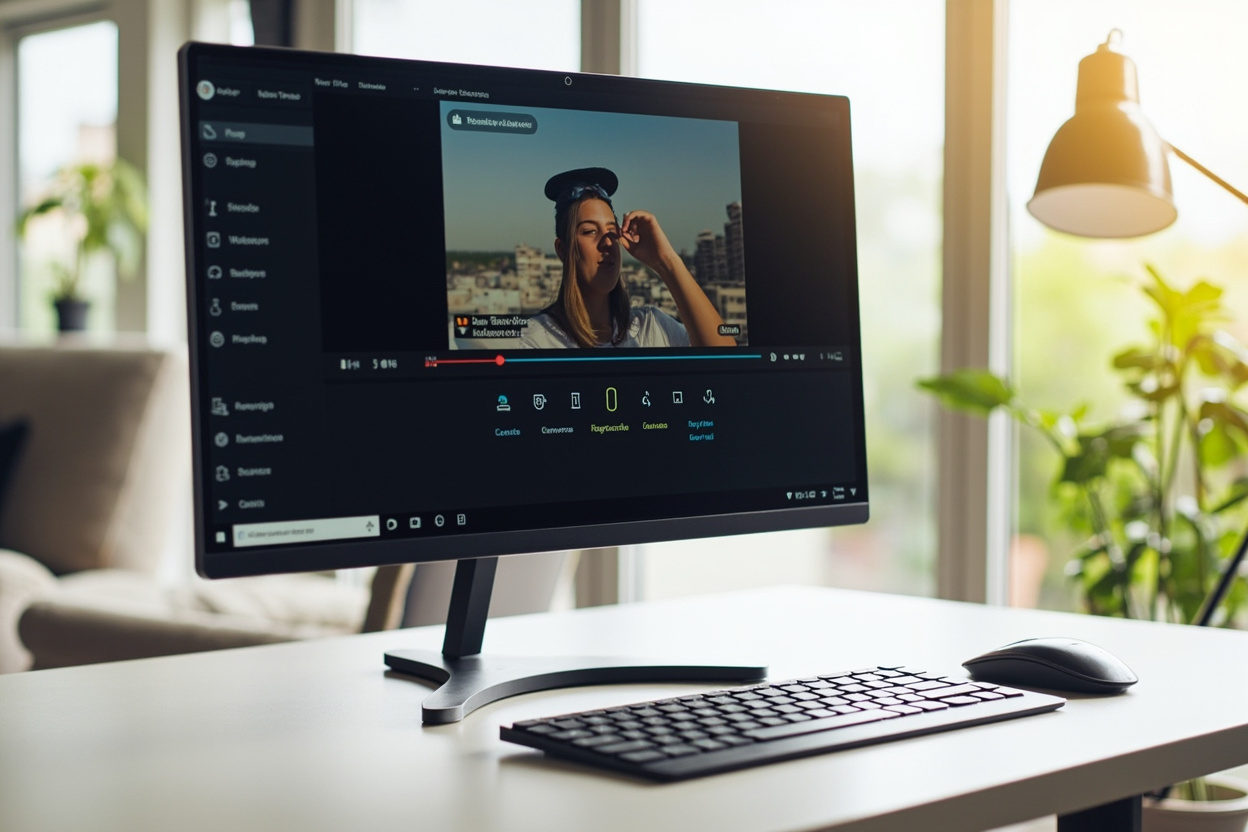
Step-by-Step Tutorial: Playing HEIC Files with VLC Media Player
VLC is our recommended tool for playing HEIC files because it requires no system installation, handles viewing and conversion, and works consistently across all Windows versions. Follow these steps to get started.
Step 1: Download and Install VLC
Navigate to videolan.org in your browser and click the large download button. The website automatically detects your operating system and offers the correct version. Run the downloaded installer and follow the prompts to complete installation. The process takes under two minutes on a modern computer.
Step 2: Open Your HEIC File
Launch VLC from your Start menu or desktop shortcut. In the application window, click the Media menu at the top and select Open File. Alternatively, drag the HEIC file directly from its folder and drop it onto the VLC window. VLC will display the image in its viewing area.
Step 3: Navigate and View Your Photos
Use the playback controls at the bottom of the VLC window to navigate between multiple HEIC files in the same folder. The slider allows you to jump to specific positions, and arrow keys advance or retreat one frame at a time. The zoom controls on the right side of the interface let you magnify individual details within the image.
Step 4: Extract a Frame or Snapshot
If you want to save a single frame from a HEIC file as a separate image, position the playback indicator where you want the capture and select Snapshot from the Video menu. VLC saves the snapshot in your Pictures folder by default, and you can change this location in Preferences under Video settings.
Step 5: Convert a HEIC File to JPEG
To convert a HEIC file to JPEG format, select Convert/Save from the Media menu. Add your HEIC file and choose Output format from the dropdown menu. Select Video – JPEG Image from the profile options, specify your destination folder, and click Start. The conversion process typically completes within seconds for individual photos.

Comparison Table: HEIC Tools at a Glance
| Tool | Platform | Cost | Best For | Conversion | Limitations |
|---|---|---|---|---|---|
| VLC Media Player | Win/Mac/Linux | Free | Viewing and light conversion | Yes, basic | Conversion UI is less intuitive |
| CopyTrans HEIC | Windows | Free (viewing) | Windows Explorer integration | Paid tier | Windows only, paid for conversion |
| iMazing HEIC Converter | Win/Mac | Free | Batch conversion with metadata | Yes, full | No playback capability |
| Online-Convert.com | Browser | Free (limited) | Occasional use, no install | Yes, basic | Privacy concerns, file size limits |
| XnConvert | Win/Mac/Linux | Donation-ware | Power users, automation | Yes, advanced | Steeper learning curve |
| Windows Photos + HEIF Extension | Windows 11 | Free | Native Windows integration | No | Windows 11 only, no conversion |
Summary
HEIC files do not have to be a source of frustration. The format incompatibility that seems like a significant barrier when you first encounter it is actually well-served by free tools that handle both viewing and conversion with minimal friction. Your choice among these options depends primarily on how you plan to use HEIC files most frequently.
If you want the simplest solution with the least commitment, install CopyTrans HEIC for Windows and forget about the problem entirely. For users who prefer not to install anything, Online-Convert.com provides instant browser-based conversion at the cost of uploading your photos to a third-party server. VLC remains our overall recommendation because it covers both viewing and conversion in one package, works on any operating system, and carries no cost or registration requirements.
The key insight is that HEIC compatibility problems have been solved comprehensively by the open-source and developer communities. There is no need to convert your entire photo library or avoid sharing images with iPhone users simply because of format differences. With one of the tools covered in this guide, you can view, share, and work with HEIC files as naturally as you do with any other image format on your computer.